Learn / AI for seniors
Let your phone do the remembering.
Type one sentence into the assistant on your phone, and it keeps doing the job for you. Muse, ChatGPT, and Grok do it on their own, for free. Gemini does it when you ask.

What you need
- Your phone, iPhone or Android.
- Gmail and Google Calendar, for the morning note and birthdays. The second look works with any email.
- The free Muse from Meta app. Get it from the App Store or Google Play and sign in.
- The free Google Gemini app. On an iPhone, get it from the App Store. Many Android phones already have it.
- The free ChatGPT app. Get it from the App Store or Google Play and sign in.
- The free Grok app. Get it from the App Store or Google Play and sign in.
First, connect your email and calendar
Ask one question so the app can see your day. Type this, or copy it:
What's on my calendar today?
What happens next
- If it asks to connect Gmail or Google Calendar, tap Connect.
- When it answers with your day, you're ready.
Your day, every morning
A short note on your phone each morning with what's on your calendar and the emails worth answering.
Gemini can't send this note on its own yet, so ask it each morning instead.
Type this, or copy it:
What's on my calendar today, and which emails should I answer? Use plain words and keep it short.
Type this, or copy it:
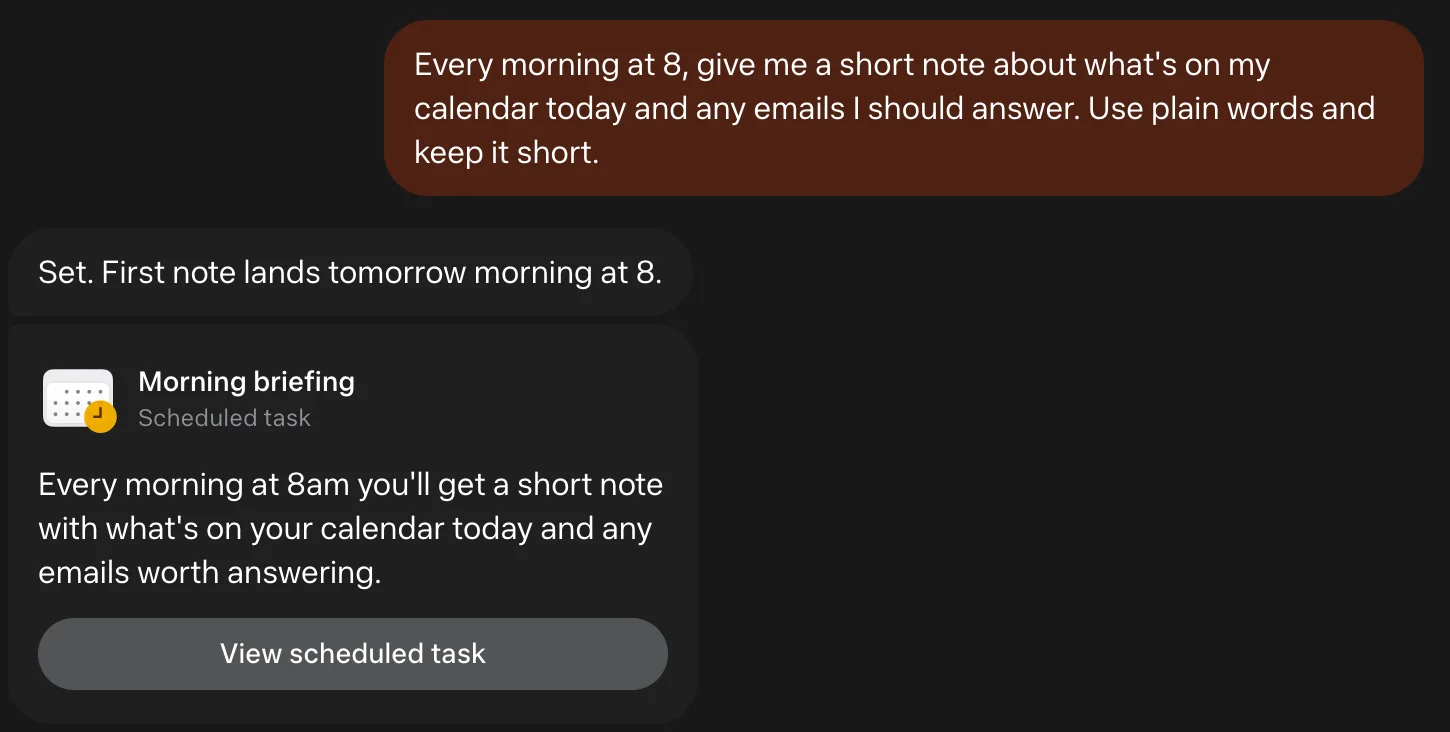
Every morning at 8, give me a short note about what's on my calendar today and any emails I should answer. Use plain words and keep it short.
What happens next
- It writes back with the time it set. That's how you know it worked.
- From tomorrow morning on, the note arrives in the app on its own.
- To change the time or stop it, tell Muse in the chat.
- To change the time or stop it, open the menu and tap Scheduled.
- To change the time or stop it, tell Grok in the same chat.
A second look before you click
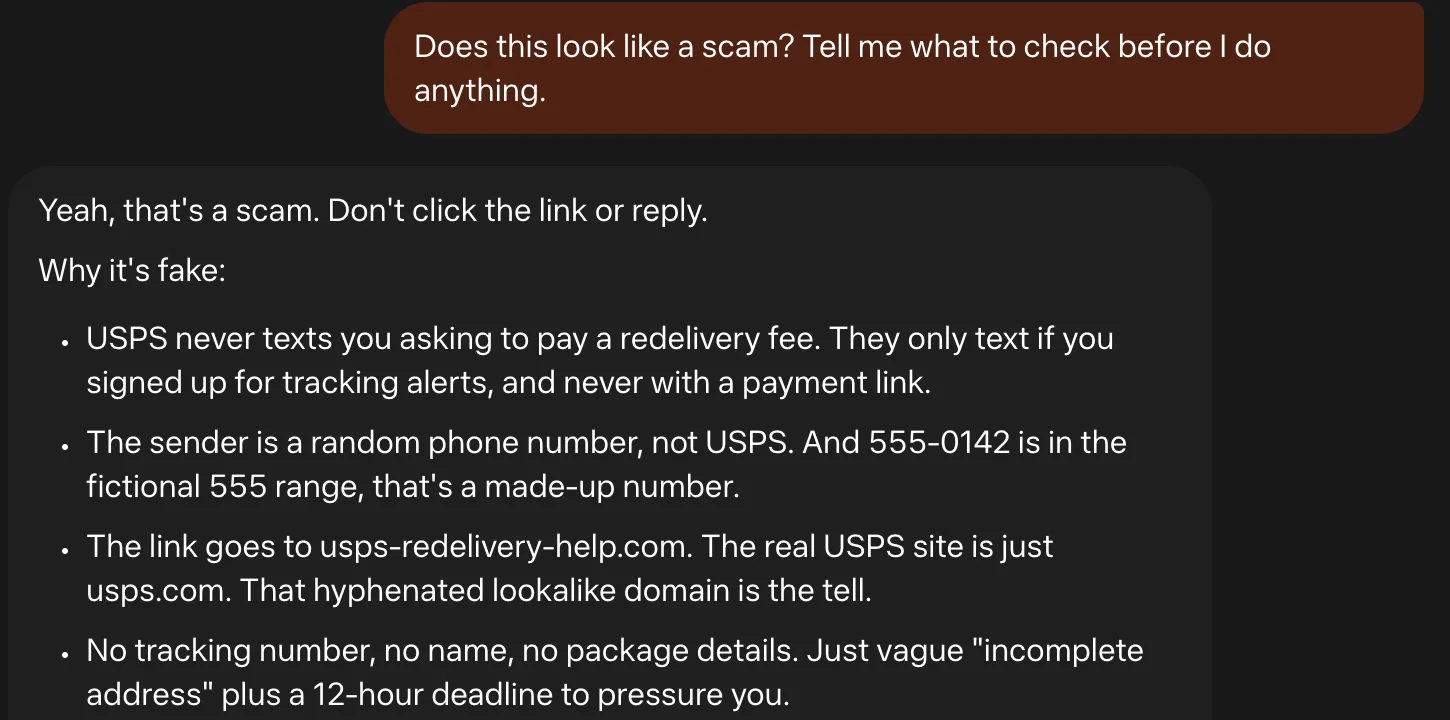
A text or email asks you to pay, sign in, or call a number. Ask first.
If a message says it's from your bank or a company you know, call them at the number on your card or statement, never the one in the message. Read the FTC's tips.
- Take a screenshot of the message. Not sure how? Ask the app: "How do I take a screenshot on my phone?"
- Open the app, tap the plus sign (+), and choose the screenshot.
- Type the words below.
Type this, or copy it:
Does this look like a scam? Tell me what to check before I do anything.
Birthdays, a week ahead
A note every Sunday with the week's birthdays and anniversaries, in time to mail a card.
Gemini can't send this note on its own yet, so ask it on Sunday instead.
Type this, or copy it:
Whose birthdays and anniversaries are coming up this week? Check my calendar.
Type this, or copy it:
Every Sunday at 6 pm, tell me whose birthdays and anniversaries are coming up this week from my calendar.
What happens next
- It writes back with the day and time it set.
- It finds birthdays saved with your Google contacts or added to your calendar as a yearly event. Add one once, and it comes back every year.
- To change the time or stop it, tell Muse in the chat.
- To change the time or stop it, open the menu and tap Scheduled.
- To change the time or stop it, tell Grok in the same chat.
Setting this up for a parent?
Sit together and do the steps on their phone while they watch. Let them type the morning sentence themselves. Then print this page and leave it by the phone. Or book an hour, and I'll walk you both through it on a video call.
More setups like these, by email
One short email when there's a new job your phone can do for you.
You're on the list. New setups arrive by email.
Last checked .
 Bruno Amorim, founder